By Ross Madden
Published on September 24, 2026 2:15 pm MT Posted in General CNSIT
Microsoft Intune Remote Help is a cloud-based IT support tool that enables secure, real-time screen sharing and troubleshooting for organizational devices. This is particularly valuable in the world where many of us are remote or hybrid in our work locations. Assisting users that are not physically on campus has always been a challenge. This tool allows us to securely connect, and work with a remote user on their CSU owned corporate computer.
All CSU owned computers within the College of Natural Sciences that are managed using the Intune, cloud-based endpoint management system will have the Remote Help app installed automatically.
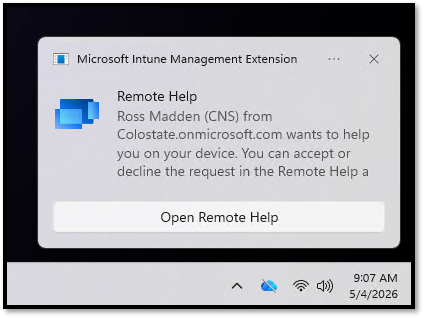
When an IT professional on campus initiates a Remote Help connection, you will see the following “toast” notification appear in the bottom right of your screen. This will let you know the name of the IT staff member that is assisting you.
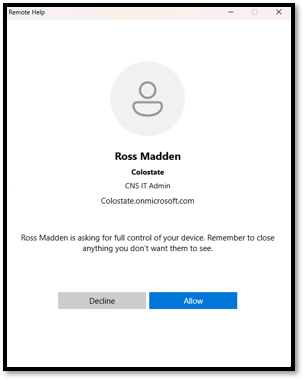
Clicking on the “Open Remote Help” button will cause the local Remote Help app to launch and present a familiar M365 login process. Be sure to choose the “Work/School” option when logging in. The format of your username will be NetID@colostate.edu along with your CSU password. This is following with a DUO 2FA authentication request. Once approved, the IT staff member will log in on their end. You will then be presented with an authorization request similar to the following:
Clicking “Allow” will create the session in which the IT staff member can interact with your screen. Of course, at any point in the process, you will have the ability to end the session.