By Ross Madden
Published on September 18, 2025 11:40 am MT Updated on September 18, 2025 12:02 pm MT Posted in General CNSIT, Windows
Please note that these directions are for use with CSU owned and managed computers. Also, these instructions require a local administrative account to complete.
These are not intended to assist with updates for personally owned computers.
When ensuring our Windows computers are running the latest software it is occasionally necessary to use a help application. Microsoft provides an update assistant to aid us in managing this process.
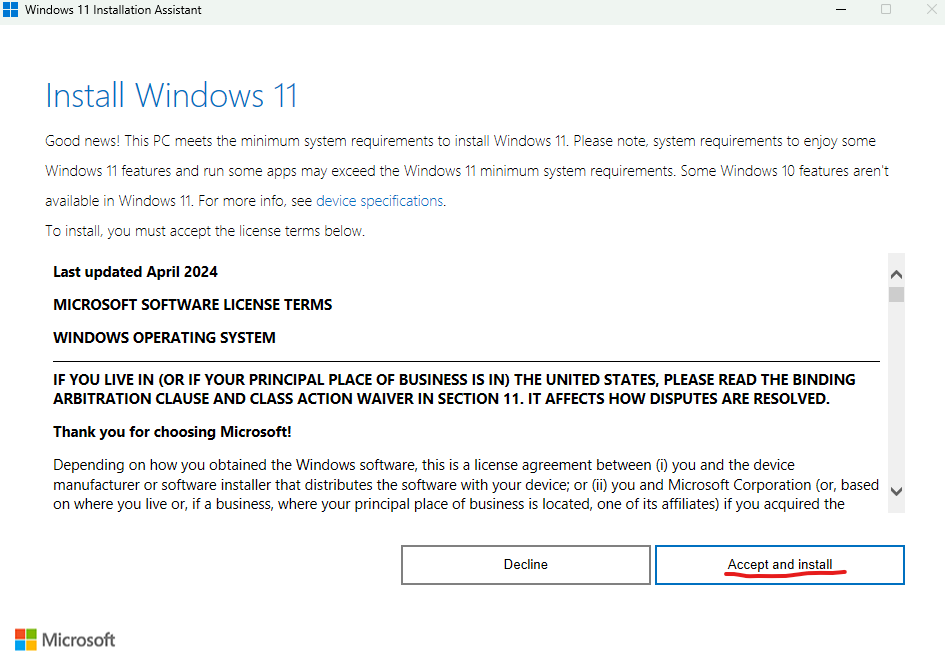
After you launch the application, it should detect and approve the system’s hardware for the update.
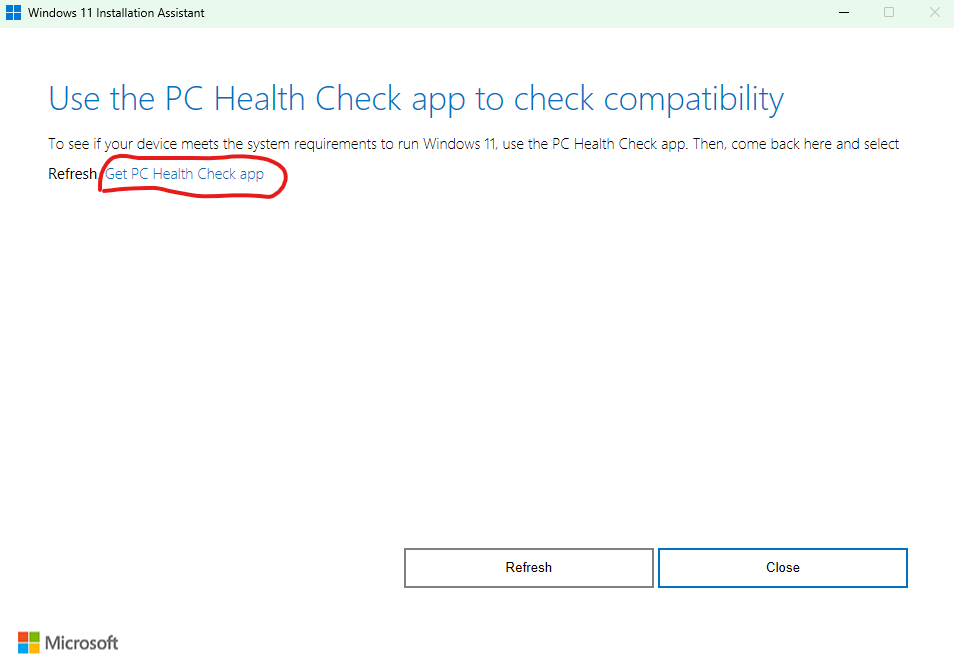
Sometimes, you will see the following window, which will require an additional step in order to proceed. If you are presented with this window, you will need to click on the “Get PC Health Check app” link which will download the program.
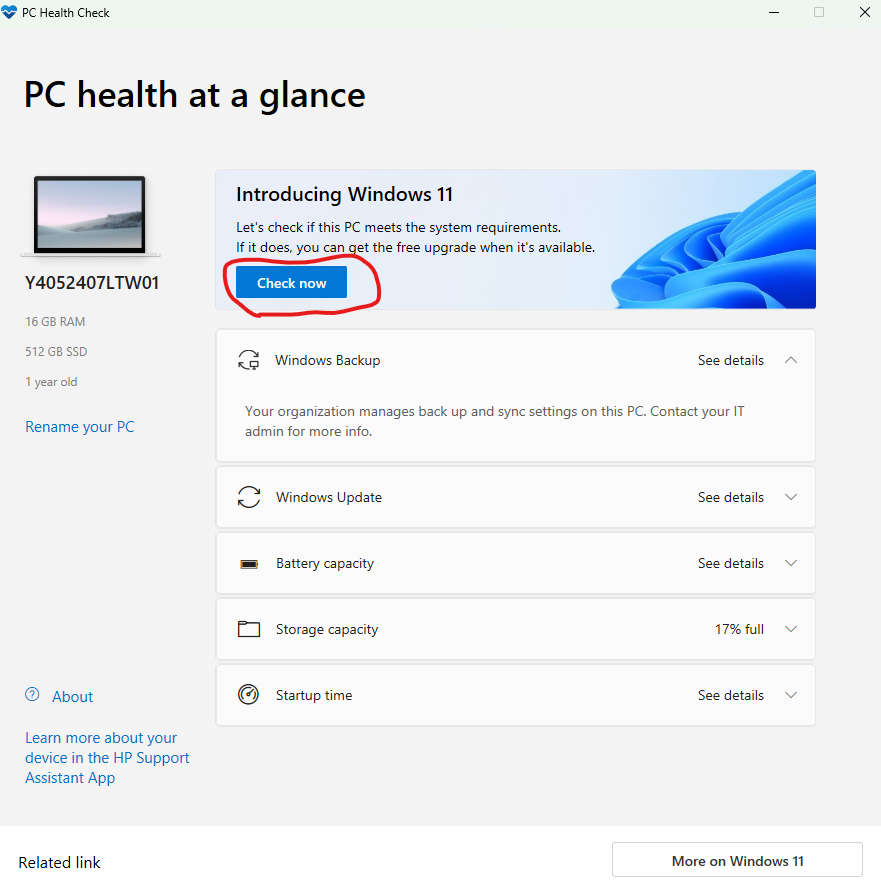
When you launch the Health Check app, you will see the following. Click on the Check now button near the top.
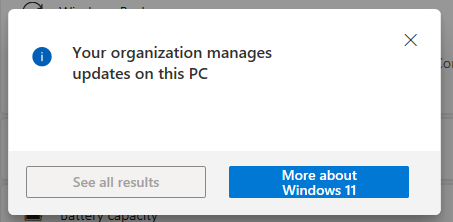
Once you “Check now” you will see the following.
This message is normal and you will now just need to close all of the Health Check app windows and go back to the “Windows 11 Update Assistant” window before and click on the “Refresh” button. From there, you should be back to the first window where you can proceed with the “Accept and Install” buitton.
If you are presented with a message stating that your computer is not compatible with Windows 11, you likely have an older machine. It is important to check in with CNSIT through a ticket to discuss your options. https://cnsit.colostate.edu/help