One of the common points of confusion is why a computer that uses wireless access to CSU’s csu-net wireless access (or any wireless network that requires username and password authentication to access the network/Internet) does not automatically connect to that network after a restart and before the user logs back in. This is a command and standard security scenario that this article hopes to better explain.
Why this happens
Per-user network settings: Your saved Wi-Fi networks and connection preferences are often tied specifically to your user profile. Until the computer knows who is logging in, it stays offline.
Security protocols: For many enterprise or secure home networks, authentication requires your specific user credentials, which can’t be validated until you type in your password or PIN.
Power-saving settings: Network adapters are sometimes programmed to power down during a restart to save energy until the operating system fully boots and authenticates.
Knowing this, there may be times when allowing the laptop to remain online with user based credentials (even when logged out) might be beneficial. There are actually very few reasons, and the most common scenario has a better, more secure solution.
Shared Devices – These are devices that are shared across multiple users (multiple and individual users logging in as themselves) but these users do not remain logged in. With this, these machines are best kept online so that they can receive updates in a timely fashion and are ready for the next user without immedietly interrupting them with updates once they are back online. The solution here is to request the device be set up CSU’s IoT network. This is a Mac address based authorization and can be requested with a CNSIT Ticket at https://cnsit.colostate.edu/help
Individual Devices – These are single user devices where the need to stay online even though the user is logged out is to make sure the device is accessible and up to date for a future log in. In this case, the directions below will help set this up.
The first step is to search for and select the “Wi-Fi settings” configurations using the Windows search bar as shown below.
From there, click on the “csu-net properties” to view the profile information.
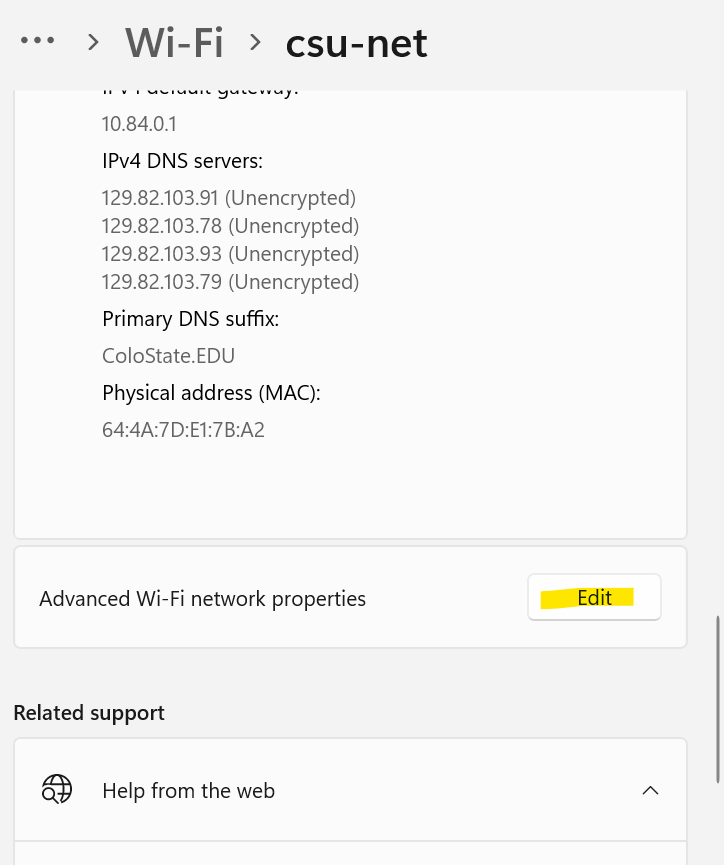
Now, you will scroll way down and click the “Edit” button next to “Advanced Wi-Fi network properties”.
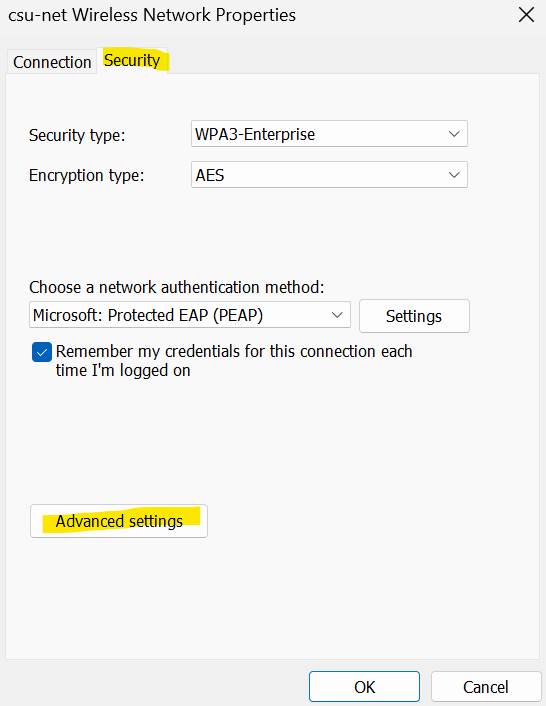
You will now click on the “Advanced” tab” and then choose “Advanced settings”.
Finally, click on the “Save credentials” button and enter in your CSU NetID credentials. Click the “Ok” buttons to close out the process.
You can test this functionality by restarting your computer, and waiting on the log in screen. It should automatically connect to the csu-net wireless network without you logging in. You can confirm these steps are accurate after the restart by following them again and noting that the button to save your credentials now says “Replace credentials”. This will be useful if your password changes in the future.