By Ross Madden
Published on November 13, 2025 1:46 pm MT Updated on February 10, 2026 8:14 am MT Posted in Apple, General CNSIT, Windows
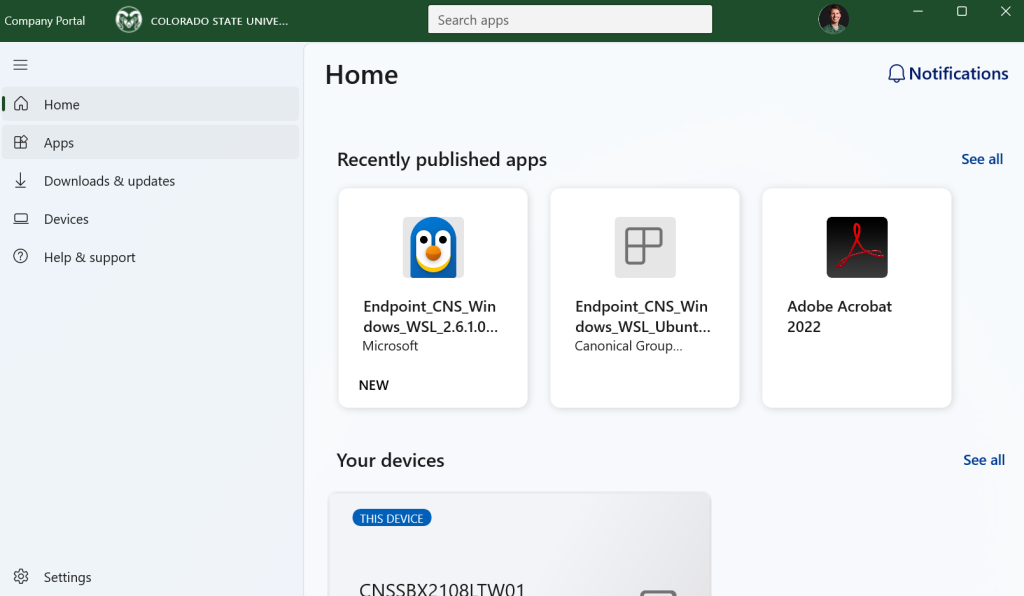
For devices that are managed in a co-managed state or Intune only state (as described here: https://cnsit.colostate.edu/kb/easing-into-intune/) the Company Portal is a user-facing app acting as a self-service store and management hub where users can securely access company resources such as applications as well as manage their enrolled devices in order to stay compliant with CSU’s cybersecurity and network policies.
One of the main uses for the Company Portal is to install applications without the need for elevated user privileges. To launch the Company Portal, simply use the search field in your operating system and launch the result.
You will likely need to authenticate via the Duo 2fa as some applications are restricted to specific users.
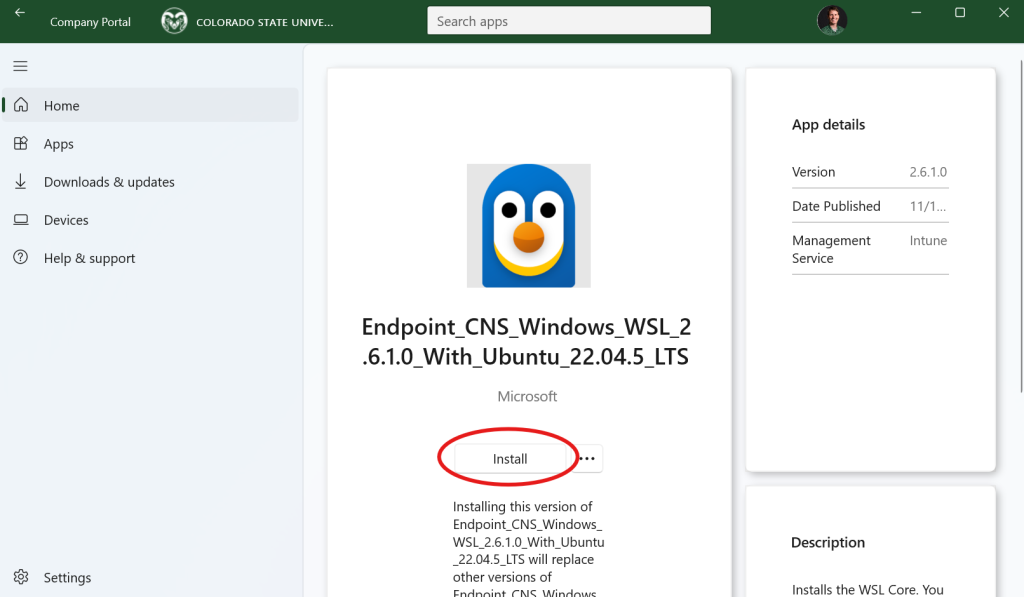
You can see here that a list of applications are available to install for this device and this user. Simply click on the application you would like to install and click on the “Install” button to proceed. Be sure to read the descriptions on the right as there may be additional steps (such as a system restart) required for a given application.
If an application you are needing is missing from the Company Portal, please be sure to request this with a ticket at https://cnsit.colostate.edu/help